
You will be in a great company












The right features for proper project management
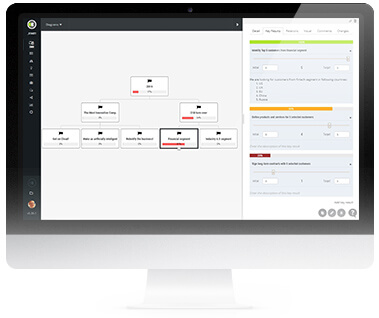
Objectives & Key Results
Why build it? What is the most important? How much?
The tool for senior management. Align the company with transparency and self-management. Focus teams on Objectives and Key Results (OKR) instead of tasks. Connect objectives to your initiatives and backlog items.
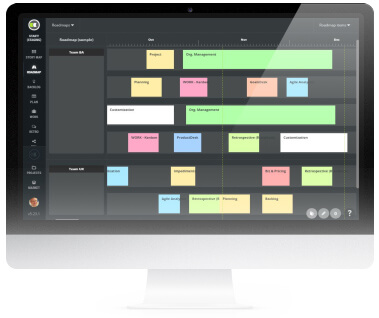
Backlog & Roadmaps
What should be built? When is it needed?
The tool for the Product Owner. Multi-level hierarchy user stories map with visual cards. Business initiatives, themes, epics, features, user stories. Manage the project schedule with roadmaps. Release and sprint planning.
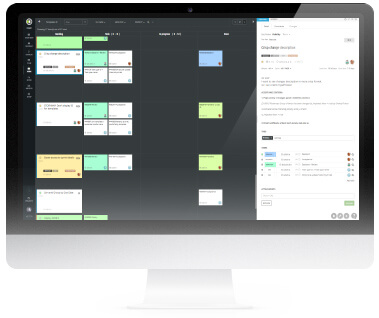
Scrum & Kanban Project Management
How do we build it? Who is working on what?
Compact Scrum project management tool for the development team with the product backlog, sprint plannings, daily scrum, sprint review.
Scrum teams track tasks on Kanban boards by drag and drop. Customize workflow. Impediments management.
Reports. Predictions. Identify mistakes in the Scrum process. Instantly save and synchronize changes.
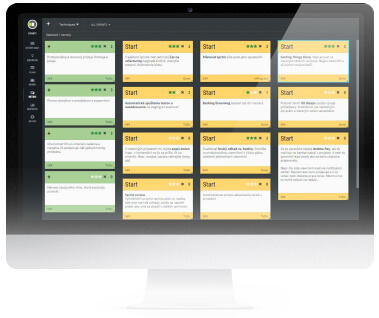
Retrospective & Root Cause Analysis
What can be better? What is the root cause of our blockers?
The tool for Scrum Master. Improve continuously. Facilitate online or onsite retrospectives. Team voting for the most important ideas. The best 14 retrospective techniques included. Analyze complex problems with root cause analysis. Causal loops diagram or mind maps. 5 why technique.
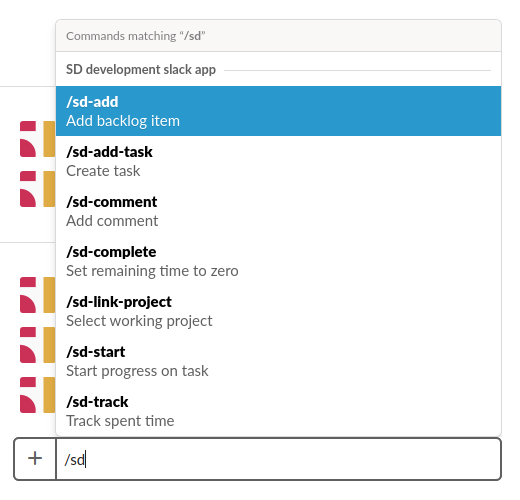
ScrumDesk works with






ScrumDesk works with
What customers say
ScrumDesk is unique task manager. It is strictly consistent with the methodology, at least in the sense that we understand Scrum. We tried a variety of options, including those listed above, but stopped on this scrum project management tool.
I love the way it makes the work planning efficient. Once I enter stories/features/epics I can reuse them in other templates and plans!
Awesome. The last release was extraordinary! Nice work!
ScrumDesk is done brutally well. Simple and it offers everything I do expect that should be included in!
Congrats on this tool.
If you look for a high-tech tool, ScrumDesk is one that you can consider.
Excellent. You always seem to be one step ahead.
First of all, i would like to say that your app is the best one I’ve found after several tests with other apps!. Great work!
We are starting to use scrum for our dev team and your soft seems like what we need. Nice and lightweight interface!
Your ScrumDesk is brilliant! We tried to use Jira, Aha.io, and many others, but that’s what you do… There is no words to describe UX and simplicity.
Was really taken by surprise on how much of flexibility a simple card is provided with literally able to do everything that i could do on an index card in just one click.
Thank you for your responsible help and support.
There is the only functionality that for me, is missing for this product to be perfect.
Thank you so much. ScrumDesk is a very good tool.
Thanks for considering my request. More power to the team!
Your ScrumDesk has been invaluable for planning my bachelor’s project. Thank you!