Reports
Project status can be analyzed in Reports view.
ScrumDesk is providing only valuable metrics and reports. These
metrics were implemented based on the best practices gathered from our
customers.
ScrumDesk support for Product Owner decisions is
unique in the market of Scrum project management tool.
Reports view is divided into these areas:
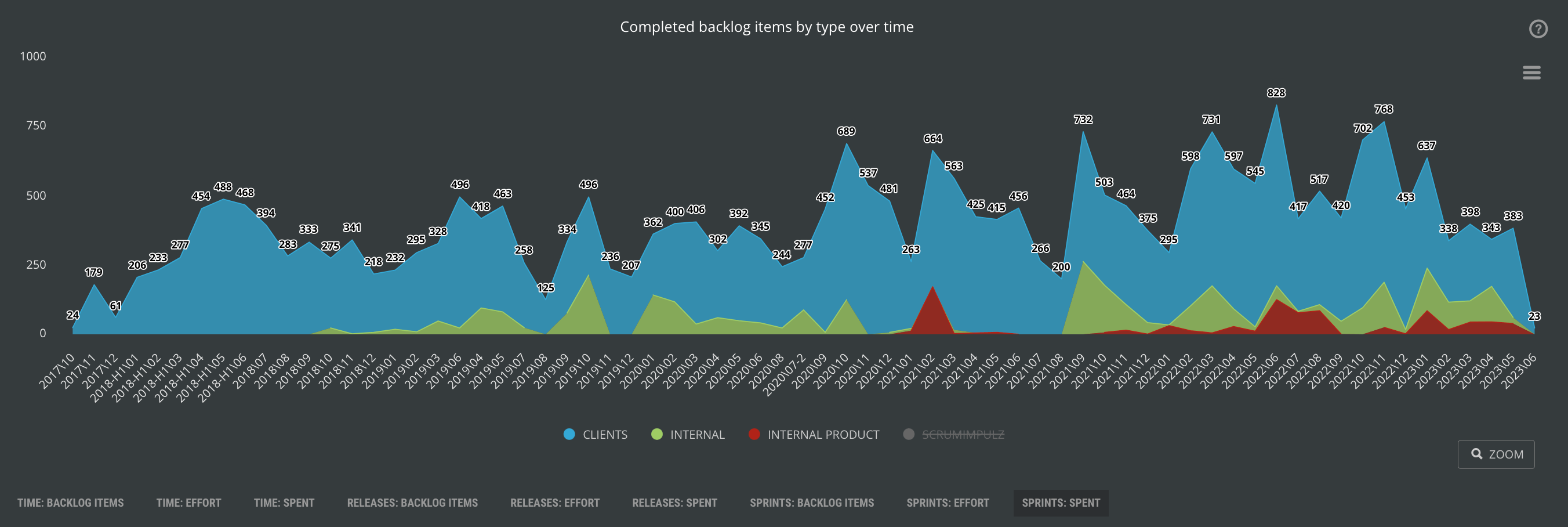
Metrics and reports for development
team
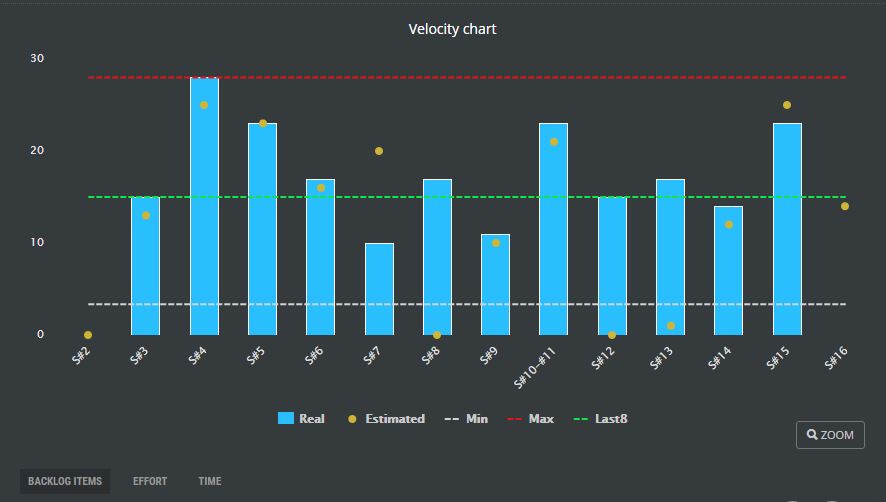
Velocity by sprint

This chart helps to identify:
- total amount of the work in sprints
- state of the sprint stories and thus completeness status
- estimated maximum sprint velocity
- velocity for 3 worst sprints
- velocity for 8 last sprints
- maximum sprint velocity
Velocity by weeks and days
This chart is usable for teams doing more Lean techniques or if
length of the sprints is changing very often.


Velocity by release

This chart provides releases status overview.
Height of the column indicates total amount of the work needed to
complete release. Product owner can easy identify release "price".
Also, colored parts of the column indicates status of the release
stories.
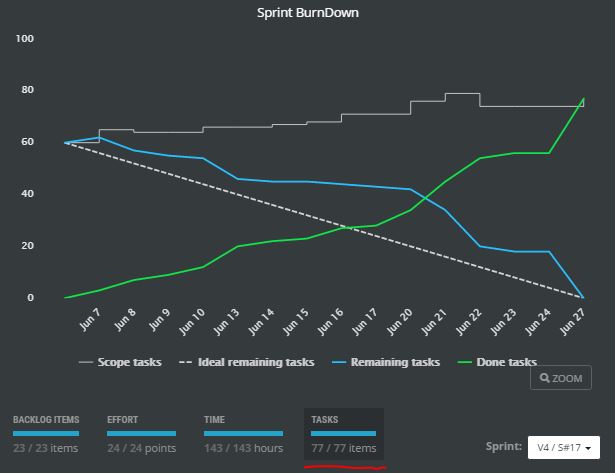
Sprint Burn Down chart

Burn down chart is a great agile way to know
sprint status. This chart displays:
-
Days of the sprint on x-axis
-
Remaining work on y-axis
-
Ideal progress of the work
-
real work progress displaying amount of the work remaining in
given sprint day
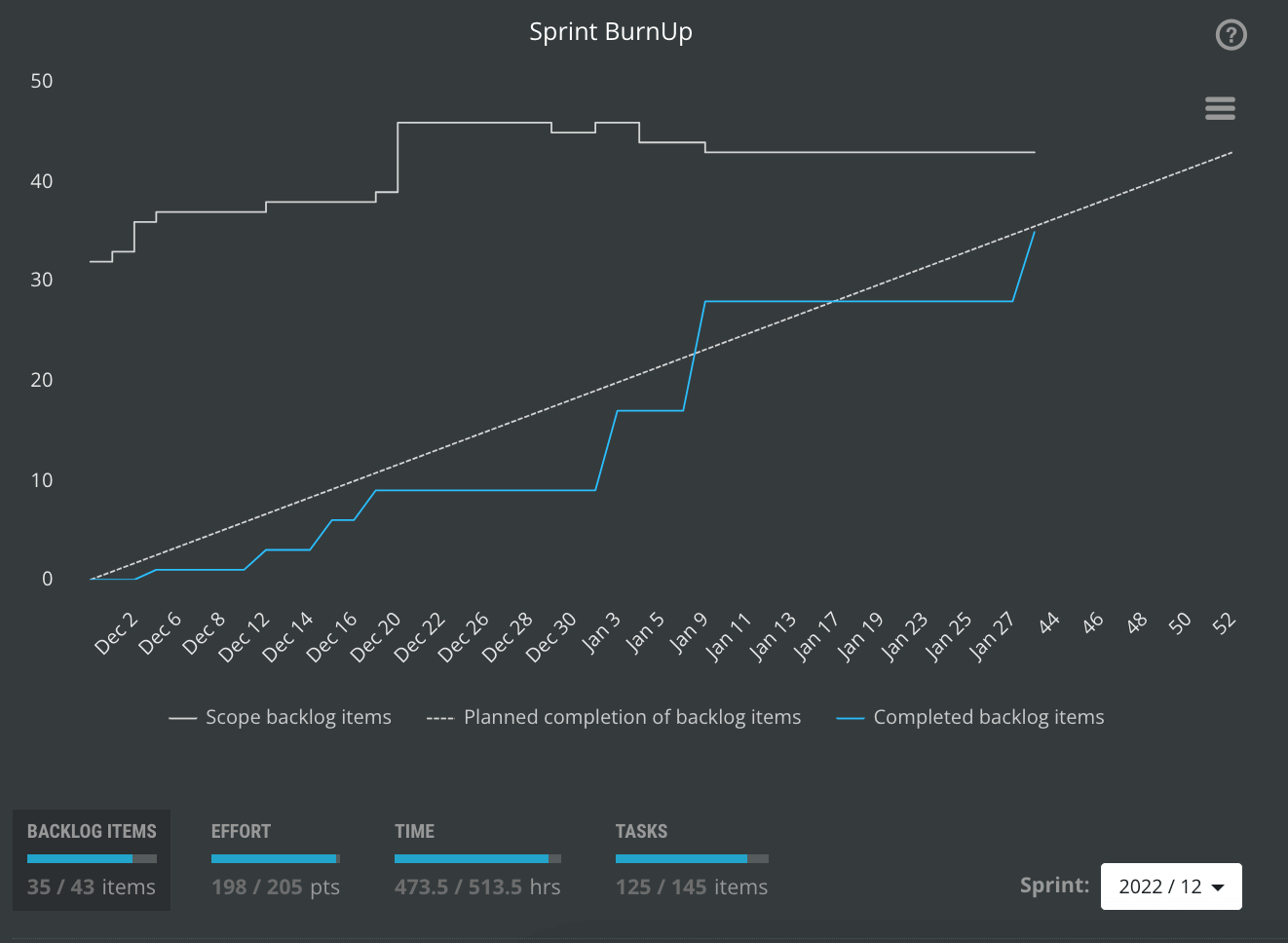
Sprint Burn Up chart
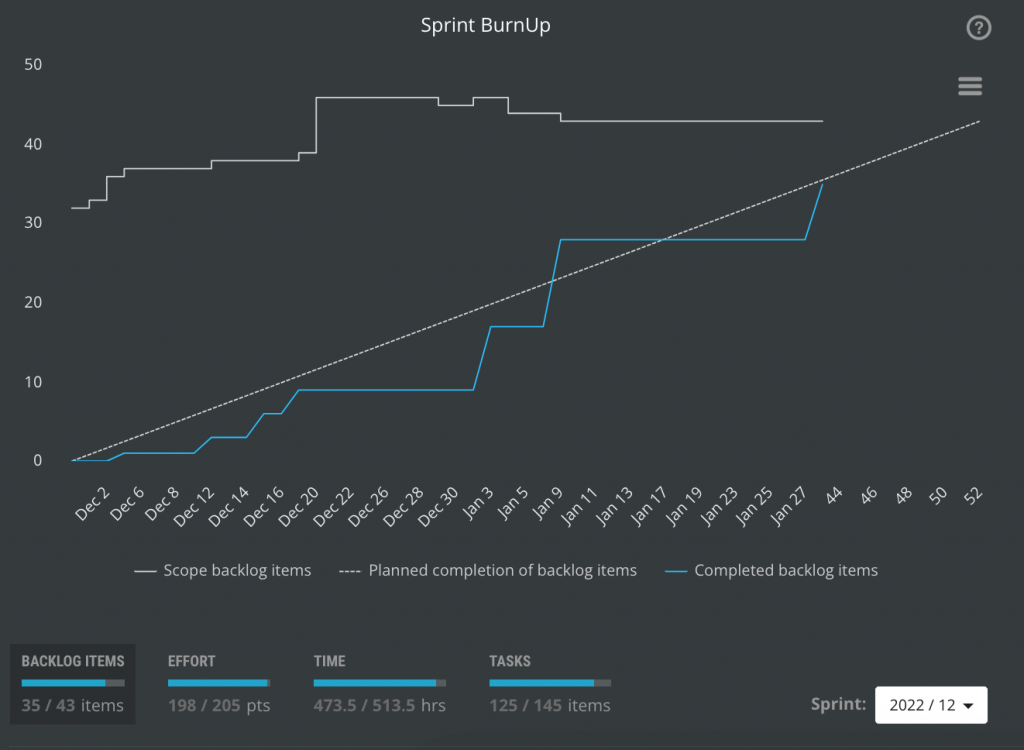
Another useful way of displaying sprint status is sprint Burn Up
chart. This chart displays how much work has been completed since
sprint start and how much work is planned for every sprint's day.

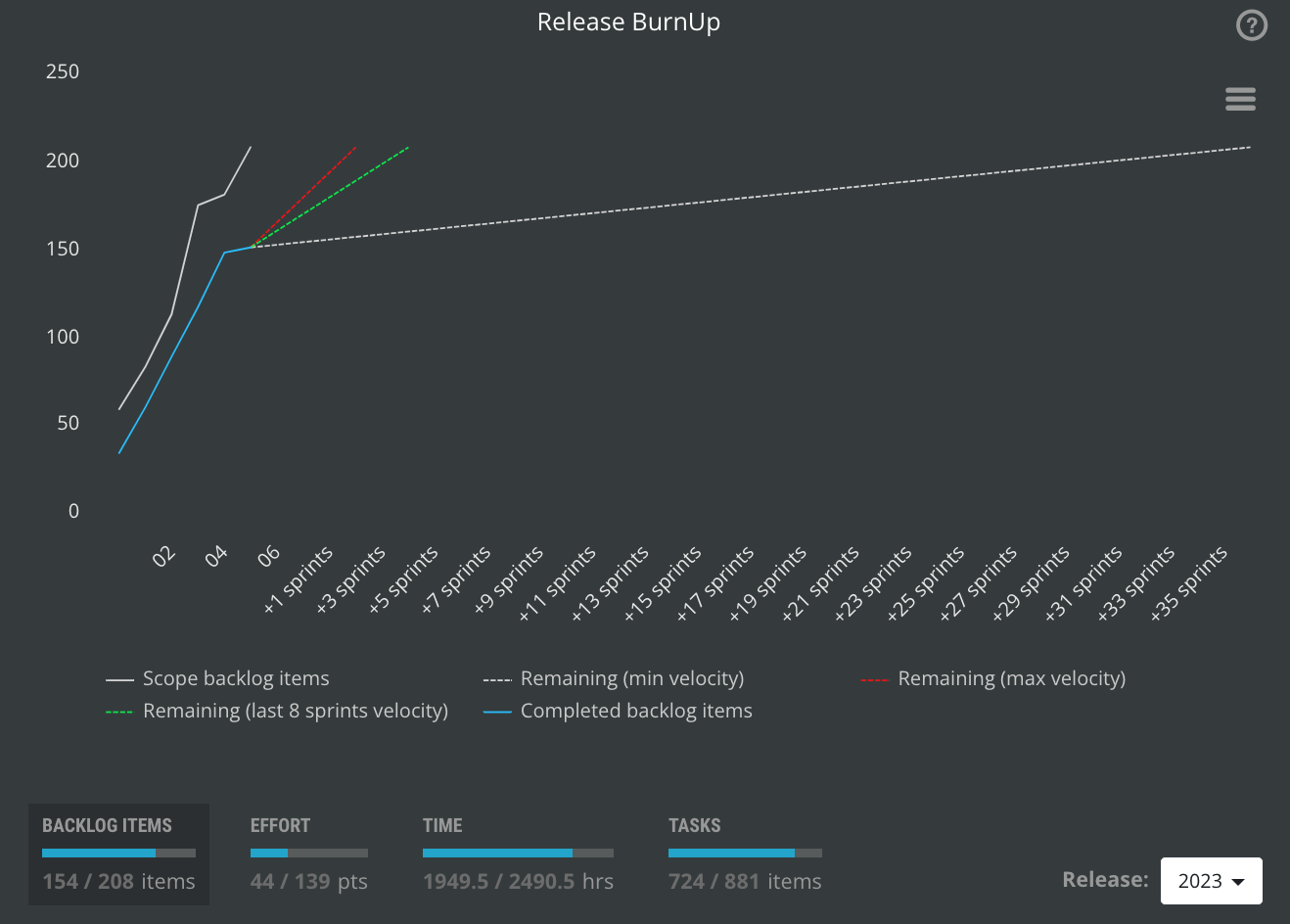
Release BurnDown chart (Iterations burndown chart)
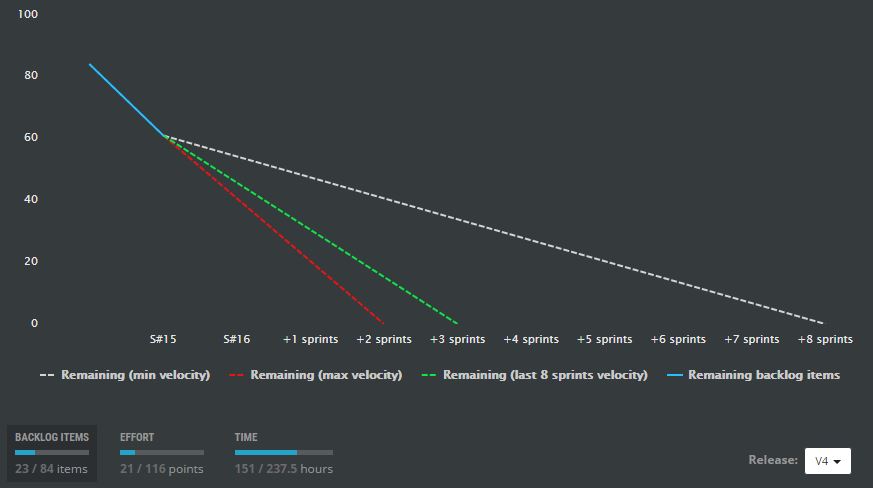
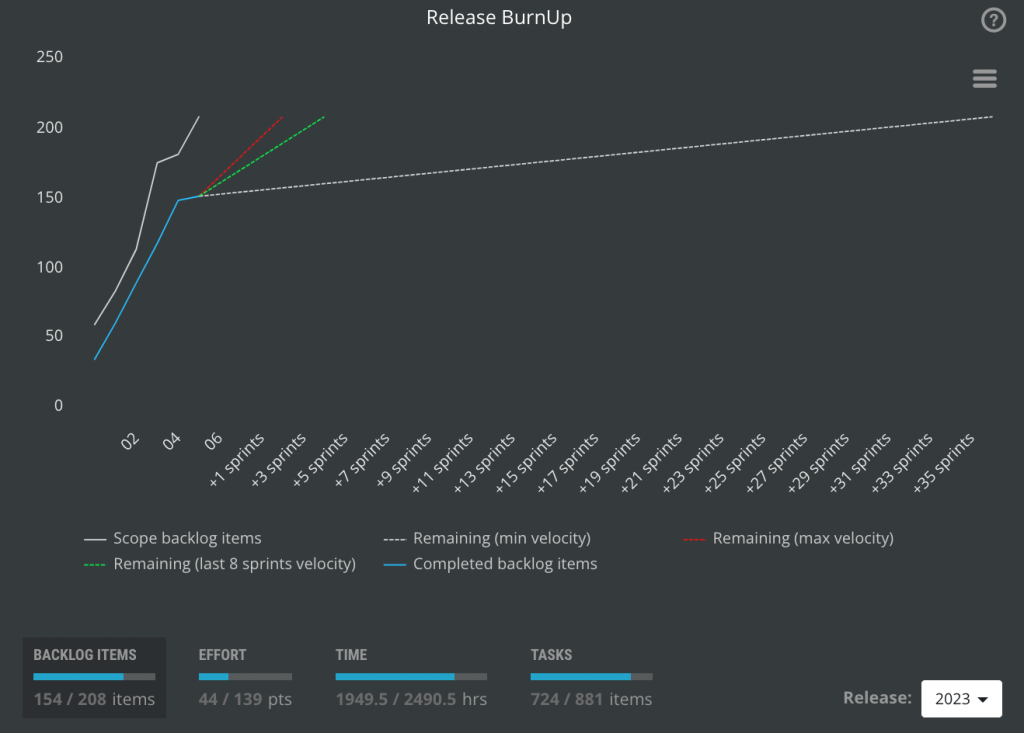
Release BurnDown chart displays progress of the release developed
in more sprints. ScrumDesk will help you with estimation
when Release backlog will be completed. Estimation is based on
statistical velocities of your team.

Parking lot
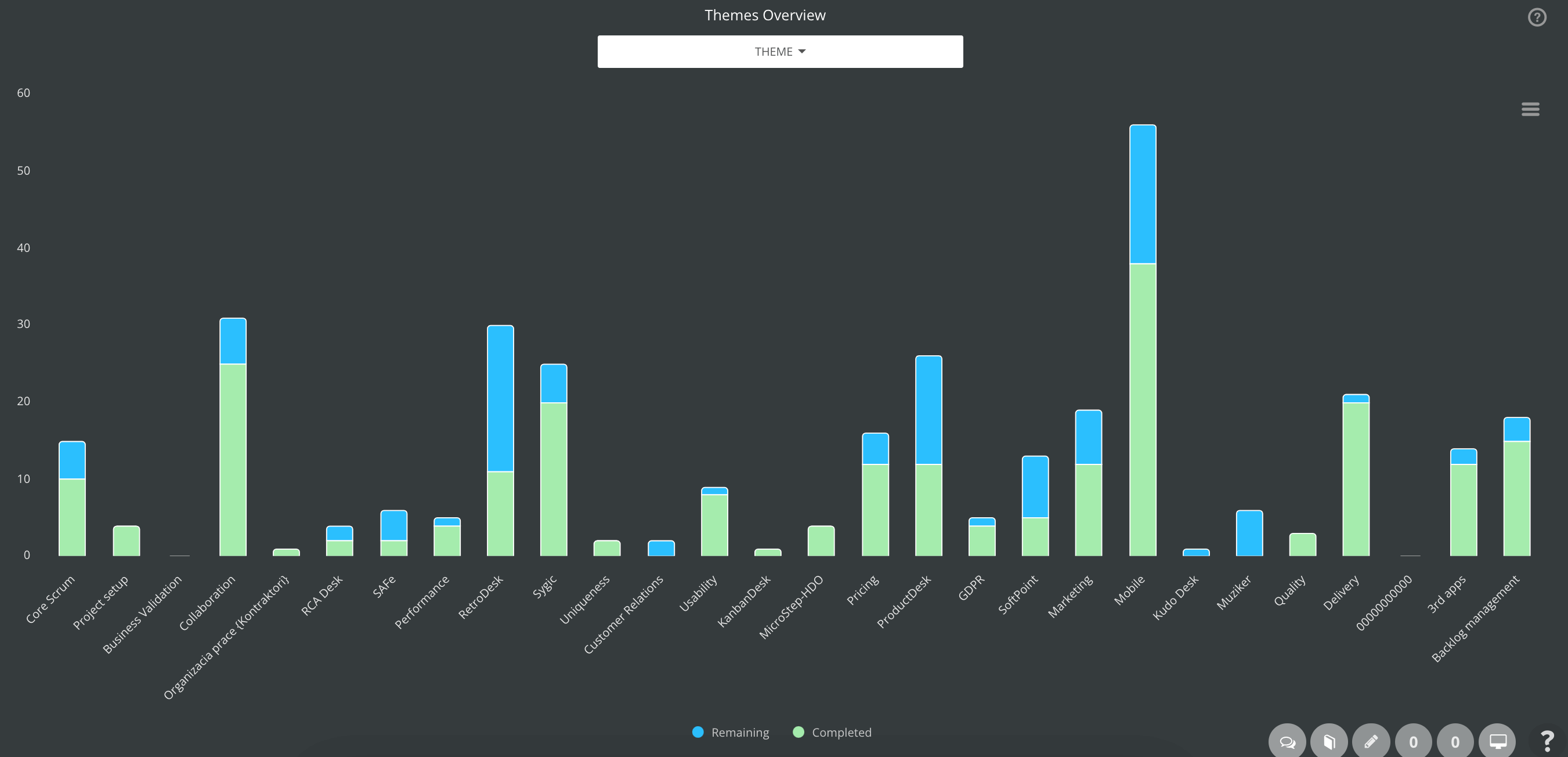
Parking lot report displays themes work
status. For every theme is card created.
Every card displays:
- theme name,
- count of the theme's stories
- number of completed story points for theme stories
- total number of story points for theme stories
- progress indicator with % of completeness

You can see not only the progress of the effort (story points),
but also the distribution of work.

Daily Backlog Trends
If you are Product Owner, take a look on this chart to see how
project backlog has been developed. See progress how fast storypoints
were implemented (orange line).
Yellow dots indicate stories developed at given day. Sprints are
displayed as small red filled circle.
Changes of the backlog's size are tracked by green line.

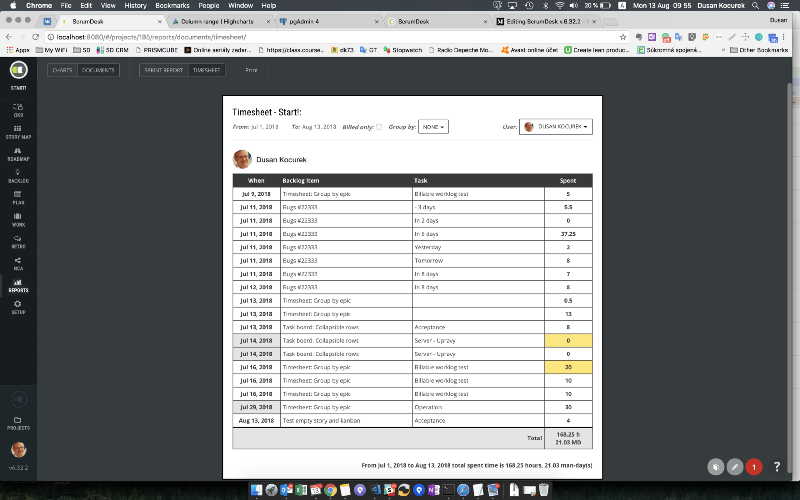
Sprint timesheet
This report displays sprint progress in a form of the time
sheet. The time sheet is generated for all team members and selected
sprint.
On a row are displayed stories and a tasks. The stories are
displayed with yellow background.
Under a story's or task's name is displayed name of the team
member who is working on given tasks. In second column is
displayed duration estimated before the task starts. Following
columns displays values entered in a given day by the team
member.
In advance, for some values is displayed small arrow. Color of
the arrow indicates exception of the estimated value.
Green arrow
indicates advance in a progress.
Red horizontal
arrow
indicates that in given days no progress has been
recognized. This can indicate some unexpected problems with
implementation or that the user doesn't update value.
Orange up
arrow
indicates that value has not decreased, but increased.
Values displayed with a gray color are values for other team member
who participates on the given task.
Stories and tasks can be easy filtered by a click on the team
member. Multiple team members can be selected. Team
members can be easy filtered by a filter text box in the right
upper corner of the screen.
Sprint can be selected in a combo box from left top corner.

Detail of the story can be started by a double-click.
Stories by status
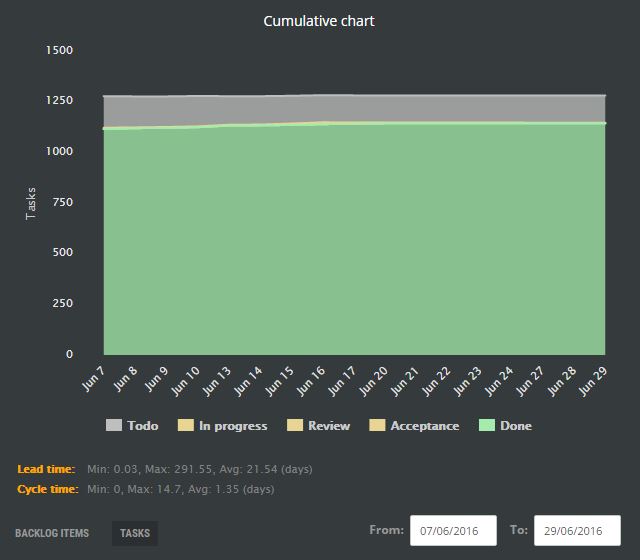
This chart displays distribution of stories by state. User is
able to identify current backlog status by an
effort (story points) or remaining time.

Metrics and reports for Product Owners
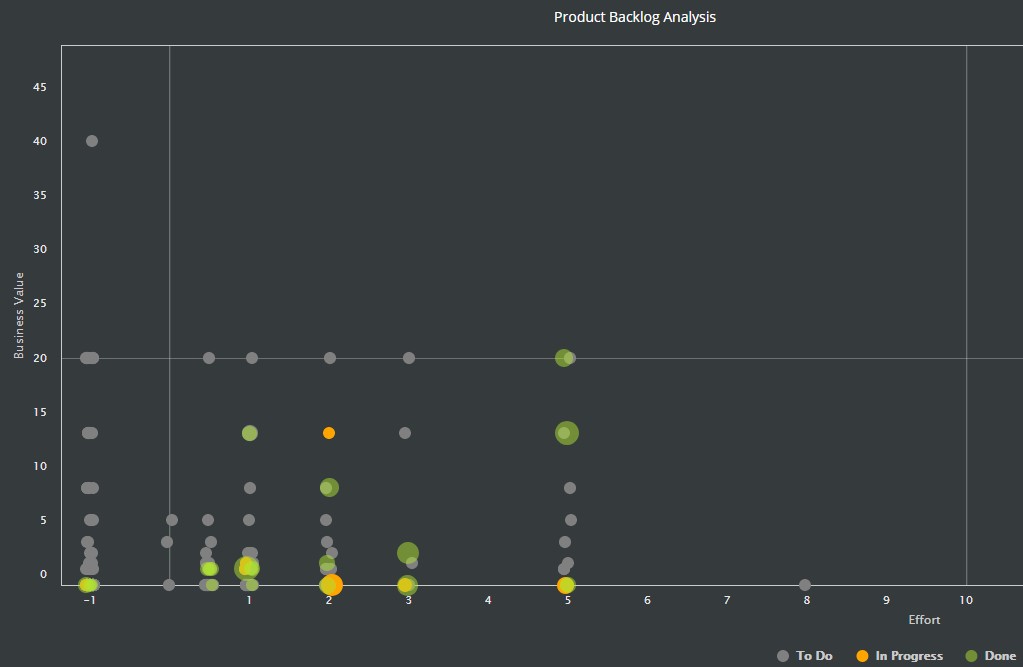
Risk vs. Value
Chart Risk vs. Value displays Risk on X-axis and Positive
Business Value on Y-axis. Stories are distributed into four sectors
- Do First, Do Second, Do Last and Avoid.
The color of the circle displays a state of the story. Click on
circle to display the story detail window.
It is good project management technique to develop the most riskiest
stories as a first. But you should take the business value into
account.
If story brings only small value, it is too much riskiest to develop
it as the first, better is to concentrate on stories with higher
business value.
Satisfaction and Effort
Kano model describes customer's satisfaction level. Every story in
ScrumDesk can be described by the satisfaction level. Product owner
can use this attribute to estimate how the customer will react to
stories.
The height of rectangles is sum of all backlog stories with given
satisfaction level. Rectangle is divided into areas colored by
story's state.
Levels are:
- Excitement - if given story is developed, customer will like to have it
- Indifferent - for customer it doesn't
matter if such story will be developed or no
- Mandatory - such story is required, it is
normal behavior, typical requirement
- Performance - if you will develop such
story, customer will appreciate better performance
- Questionable - it is a question, if such
story will provides any additional value for your customer
- Reverse - if such story is implemented,
your customer will feel uncomfortable

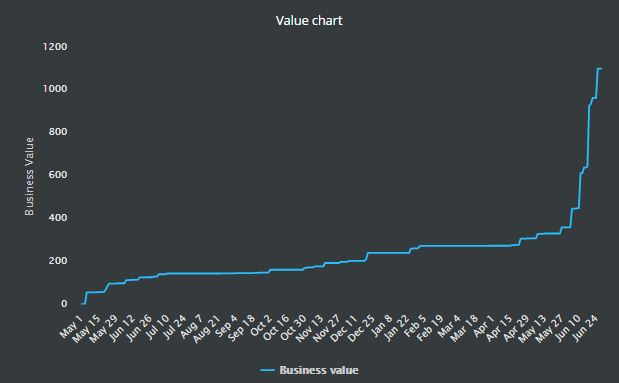
Value in time
Chart displays positive business value
completed to given day. Product Owner can easy recognize the level
of value, she can decide if it isn't enough for the product release.

See also:
|