 |
Login
ScrumDesk can run in different
scenarios, beginning as one user up to
multiple teams distributed over the
globe.
User is authorized by login name and password.
Company can have multiple project databases stored on
different servers. Login screen enables to choose a project
database. |
 |
Project selection
Developers in company are
typically working on more projects.
ScrumDesk enables to
access all the projects from one place. |
 |
Project details
Scrum master can create
development teams by choosing users from a
company
contact list. Developers can be grouped to the teams.
ScrumDesk integrates bug tracking systems
and project
documentation server (Microsoft SharePoint, wiki pages).
ScrumDesk supports customization of colors for status
indication.
This screen enables to set details for project's
synchronization with other systems |
 |
Story Templates
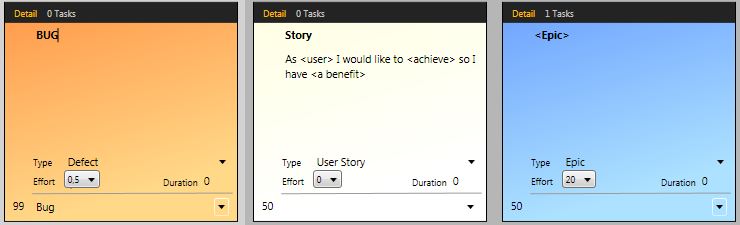
Story templates enables to a team to create index cards templates
for most often created stories, for example for a bugs,
feature requests, risk and so on.
To create a new story from the template, select the
template from a list available in a New submenu.
|
 |
Project Planning
Agile project is developed in
iterations. These iterations in Scrum method are called
Sprints. Sprint has its time box, main
goal, start date, duration, date of a demo.
Every sprint contains stories that product owner wants to
have completed in sprint duration.
Planning view can be used to manage product releases,
their dates and description. |
 |
Planning poker
Very usable technique for size
estimation is planning poker. ScrumDesk helps teams to
view backlog stories by size of stories.
Every poker round can be timed by time set before round
starts. |
|
Sprint detail
Every sprint in Scrum has to have name,
goal and notes.
Sprint is time box, it starts at start date
and has its length (in working days).
Every sprint in Scrum ends with product demo. This
demo is typically on the end of the
sprint. ScrumDesk offers to set demo when is needed.
Velocity is maximum size of sprint
stories effort that development team can solve and get
completed. The value can be estimated
from reports using
statistics indicators.
State of the sprint enables Scrum
Master to control the development progress. When a
sprint is started, developers can starts their stories
and tasks, when sprint is marked as Done, changes of the
stories are locked. |
 |
Release detail
Product Owner can create and manage releases. Every
release has its name, date, when the release must be
done and little description for development team.
Detail also displays more information about "release
cost" - number of the stories, effort needed to complete
the stories, % of completion. |
 |
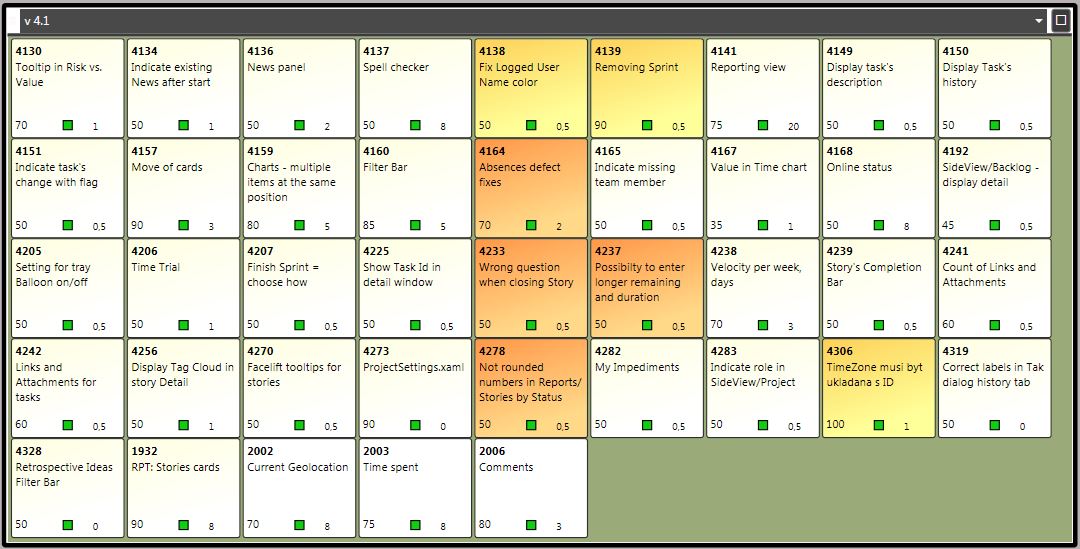
Desk view - zoomed to full desk view
Stories are "pinned" on desk.
User can change zoom, pan the desk and reposition
the
story cards.
This screenshots shows desk zoomed to maximum desk size.
|
 |
Desk view - zoomed to card detail
To get more details about the
story, user can zoom out to the story card. |
 |
Task board (Kanban) view
Work with tasks and stories using task board. Manage
your tasks by drag and drop, change status of tasks,
check your status using quick overview. |
 |
Treemap view
Backlog can contains many stories. It is a problem to
find stories that are top priority or that are the
biggest.
Treemap is great way to visualize your stories. You can
group stories, stories are colored by different
attributes. |
 |
Grid view
ScrumDesk supports also "traditional"
grid view. This view provides editing, multilevel
grouping and sorting.
User can change all the story details including story color
or release date. |
 |
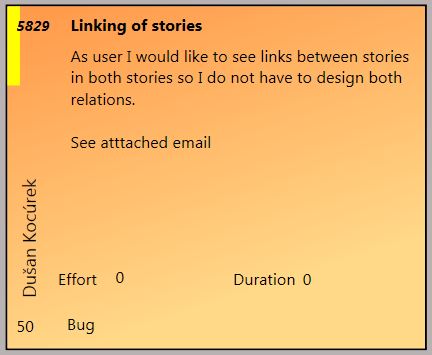
Story card
Story in Scrum can represents any
feature request, bug or risk.
Story is displayed in card. Story can have
attributes such as
subject, detailed description, priority, effort and
estimated duration.
Every story can be in one of following states: marked as To Do,
checked out, solved or completed. Story state is
indicated by color strip in top left corner and can be
changed easily by click on this strip.
Estimation of the story size can be easy entered from
planning card as used in the planning poker.
Stories can be categorized and colored.
|
 |
Story tasks
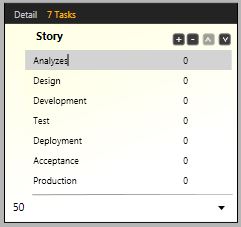
To manage project, project
stories can be divided into the tasks. This
is the way how work can be
distributed over a team. Anyone from the team can start to
work on any task.
Task is described by name, state, assigned worker,
estimated duration and current remaining duration.
Order of tasks can be freely changed. |
 |
Story progress
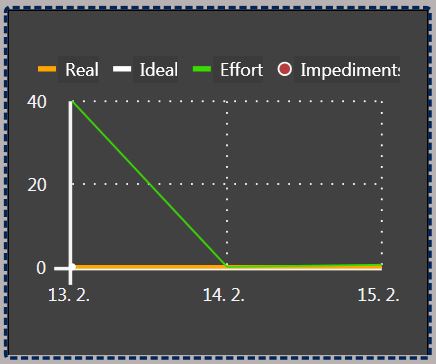
Story progress can be easy determined by story burndown
chart. This chart displays number of remaining days
expected by developers in given day.
Second serie shows ideal story progress.
|
 |
Story color
Stories can be categorized by story card.
This color can be used to group stories by feature,
priority, state, requirement type.
User can freely choose which attribute color represents. |
 |
Story details
Story card is created to display important
management
attributes. To see more details in one place, user can
displays story detail.
In advance, this detail window displays story history,
all tasks and story progress burn down chart.
Stories can be tagged. Story can have attached files.
Details enables to a user to enter impediments. |


 |
Story impediments
Story Detail enables to a user to enter impediments. Work on a story can be interrupted in
any time by an unexpected reasons. This is an impediment.
Impediments are displayed in a burn down charts and on
the index card too.
|
 |
Story attachments
Story can have attached files.
ScrumDesk can upload these attachments into a project
database so files are accessible to even a distributed
team
Attachments can be anytime downloaded by double click.
For every attachment is thumbnail displayed. |
 |
Retrospective idea
ScrumDesk support sprint retrospective. Anyone from team
can enter its ideas on desk.
Team member can then vote for
best ideas and implement them in development
process.
The retrospective card displays total points for idea.
Ideas can be freely categorized, for ecample "What was
bad",... |
 |
Preview pane
Preview pane shows full desk
and all story cards. Red rectangle highlight current
displayed area in desk view.
Desk view can be easy
scrolled by moving this rectangle. |
 |
Timeline
Time schedule of the project is
displayed in one place, in a timeline.
Timeline shows sprint, demo events and releases in one
place. Current day is also highlighted.
Timeline is easy scrollable by dragging. |
 |
Information panel
This panel displays sprint
status overview including name, sprint state, % of
completed stories, current occupation, storypoints
available to be developed and number of displayed
stories.
|
 |
Sprint SideView
ScrumDesk provides easy access
to a currently displayed sprint overview.
On the top of the Side View is displayed sprint name,
goal and a small burn down chart. This
chart shows real time calculated progress by a sprint
stories
details.
Burn down chart displays ideal progress line also. As a
color indicator are displayed impediments.
Next section of this view displays stories
statistics by state, count and an effort
required to complete them.
Third section displays Effort statistics
with an sprint occupation indicator.
Last section enables to Scrum Master to start or
finish the sprint.
Progress bar displays sprint time flow.
Clicking on Edit button can be changed details in a
Sprint Detail dialog. |
 |
Project SideView
This SideView displays project
name and a path to project database.
Team members are displayed as contact cards with
picture, first and last name. Team is displayed too.
This list can be filtered.
Team communication is accessible by buttons on the
SideView bottoms. |
 |
Backlog SideView
ScrumDesk provides easy access
to the stories from following sprint or
from backlog. User
sees all stories that needs to be developed. Mini story
cards displays priority and effort. Stories can be
filtered by entering filter text.
Assigning planed stories to the current sprint is very easy,
just by drag and drop it. Also uncompleted stories can be
send to next sprint or back to the backlog.
|
 |
News SideView When a story or an idea has been changed, notification appeared in a screen right
bottom corner. These notifications are displayed in a News
panel too.
In advance, after the ScrumDesk starts, it will displays all
changes from a last user's logout.
|
 |
Search SideView
Stories, tasks and other assets
can be searched for a text.
Founded results are displayed in a list that displays
asset name and name of the asset's property where text
was found.
For some assets user can displays details just by a
double click on a row. |
 |
About Me SideView SideView panel About Me enables to a
logged user to change contact details. First name, last name and
login name are not allowed to change due to a ScrumDesk licensing
policy. Only ScrumDesk administrator can change these details.
Picture can be changed by a click.
|
 |
Reports and metrics
- Project Dashboard
Progress of developers is
displayed in
the Reports view. This view shows:
-
Velocity by sprints
- stories effort in sprints, maximum velocity in
sprints, effort distribution by state of the stories,
-
Velocity by releases - amount
of storypoints distributed by releases and by
state of the stories.
-
Burn Down charts by sprint
-
Statistics support for better sprint estimation:
- Worst 3
sprints mean
- Last 8
sprints mean
- Maximum
effort
|
 |
Reports and metrics
- Parking Lot
Themes progress can be analyzed in the Parking Lot
report.
Every theme is displayed as a card with:
- theme name,
- count of the theme's stories
- number of completed story points for theme stories
- total number of story points for theme stories
- progress indicator with % of completeness
If no theme exists, one card with overall statistics
is displayed.
|
 |
Stories by status
Report displays distribution of backlog's stories by
story status. |
 |
Daily Backlog Trend
Daily Backlog Trend displays the project progress since
project's start to current day.
On Y axe are displayed remaining story points.
On X axe are displayed days.
Sprint end is displayed as a small red circles.
|
 |
Reports and metrics
- Time sheet
Managers required view on a work progress.
This report displays sprint progress in a form of the time
sheet.
The time sheet is generated for all team members and selected
sprint.
On a row are displayed stories and a tasks.
Under a story's or task's name is displayed name of the team
member who is working on given tasks. In second column is
displayed duration estimated before the task starts. Following
columns displays values entered in a given day by the team
member.
In advance, for some values is displayed small arrow. Color of
the arrow indicates exception of the estimated value.
Green arrow
indicates advance in a progress.
Red horizontal
arrow
indicates that in given days no progress has been
recognized. This can indicate some unexpected problems with
implementation or that the user doesn't update value.
Orange up
arrow
indicates that value has not decreased, but increased.
Values displayed with a gray color are values for other team member
who participates on the given task.
Stories and tasks can be easy filtered by a click on the team
member. Multiple team members can be selected. Team
members can be easy filtered by a filter text box in the right
upper corner of the screen.
Sprint can be selected in a combo box from left top corner.
- theme name,
- count of the theme's stories
- number of completed story points for theme stories
- total number of story points for theme stories
- progress indicator with % of completeness
If no theme exists, one card with overall statistics
is displayed.
|
 |
Filtering
Desk with stories can be
filtered by story states, text or themes or tags.
Stories of logged user can filtered by checkbox "My items". |
 |
Team collaboration
ScrumDesk team members can be
easy accessible by internet phone or emails. There is no
need to known nicknames or even email addresses.
This is a simple way to keep every team member informed even in
the
teams distributed over the globe.
Supported 3rd party applications: Skype, Microsoft
NetMeeting, Microsoft Office Communicator. |